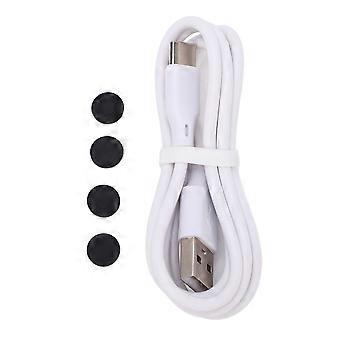
Description
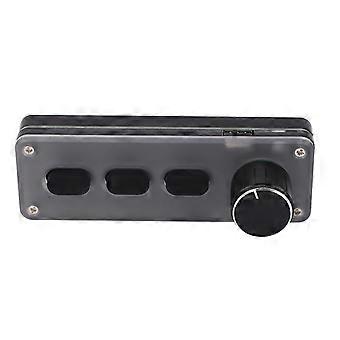
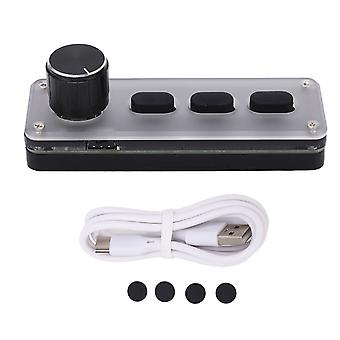
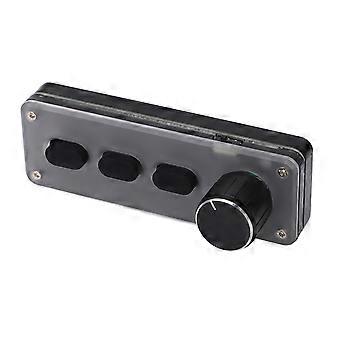
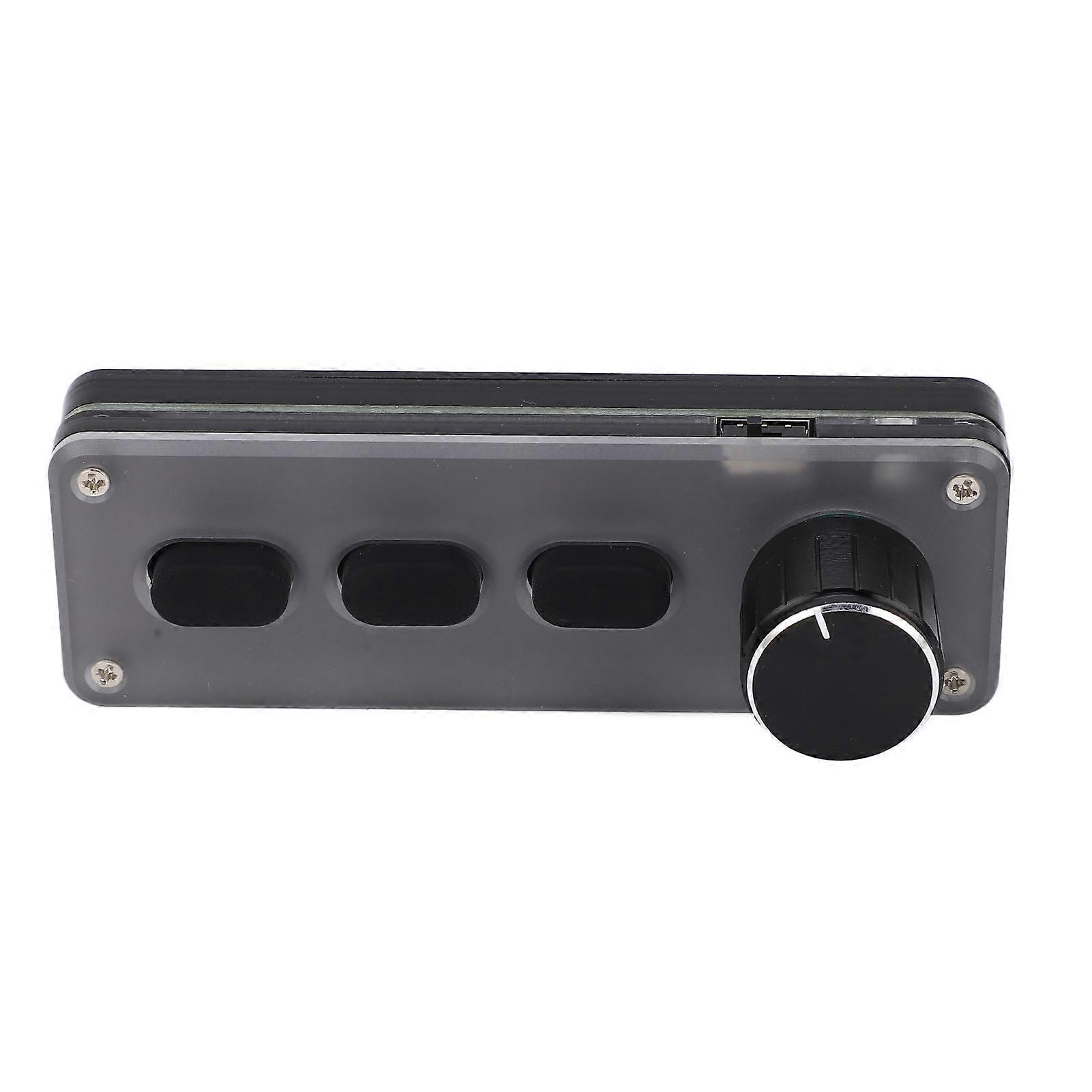
One Handed Mechanical Gaming Keypad, 3 Keys, Bluetooth, 100x34x33mm
One Handed Mechanical Gaming Keypad 3 Keys Bluetooth Multifunction Plug and Play for Office Gaming Lab Recording Studio
Item Type: Programmable KeyboardMaterial: Silica Gel, Acrylic
Purpose: Suitable for recording studio, office, drawing design, game, music, multimedia, industrial control, laboratory, production line testing and other fields
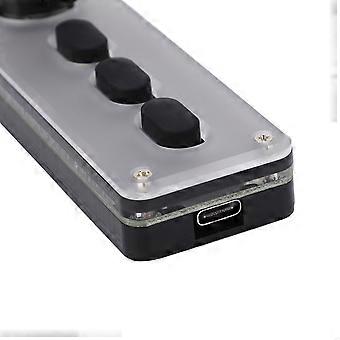
Connection Mode: Bluetooth Wireless, USB Wired Connection
System Support: for Windows, for Vista, for Linux, for OS X
Key Life: Up To 50 Million Times
Size: Approx. 100 x 34 x 33mm / 3.94 x 1.34 x 1.3in
Battery Type: 600mAh Lithium Battery x 1 (Built in)
Charging Voltage: DC5V, 1A
Working Temperature: - 10-50 ℃How e:1. Connect the keypad to the computer and open the customized software on the computer;2. On the customized definition software, click (yellow area) key setting area or knob setting area, and then click any key (green area) of KEY1‑KEY12 or knob 1 or knob 2 to be set; when selected, it will display red.3. Click the function key corresponding to the simulation keyboard on the customized software, and click Download to prompt that the download is successful, and our customized keypad can be used. For example, if I want to set keypad key 1 as the shortcut key for copying (Ctrl+C), click the Key Setting Area on the software, click KEY1, and then click Ctrl and C on the software simulation keyboard, and click Download to prompt that the download is successful.4. Multimedia function setting: click to simulate keyboard multimedia on the setting software, select the function we need to set, click Download to download, and you can use it when the download is successful5. Mouse function setting: click the analog keyboard and mouse on the setting software, click the button or the button corresponding to the knob, select the function we need to set, click Download to download, and it will prompt that the download is successful. (Prompt: You can set the mouse function, but you cannot move the computer cursor temporarily)6. Layer function setting: click the top right of the setting software to select the layer that we need to set, then click the function that needs to be set on the simulation keyboard, click Download to download, and you will be prompted that the download is successful. The keyboard has three layers of functions, that is, one key can set three different functions. The layer keys on the keyboard can be pressed to switch to one layer, and the corresponding indicator light flashes at the same time7. Bluetooth connection: First pull out the USB data cable (USB wired mode is entered by default when connecting to the USB interface), and then turn the battery switch on to the ON side. Then turn on the Bluetooth function on the computer or mobile phone, search for a Bluetooth name named HID Keyboard or MINI_KEYBOARD, click the Bluetooth name to pair, and use it after a successful connection
-
Identifiant Fruugo:
411391784-870352252
-
EAN:
9461334112615